
Typically 1–3 minutes depending on video length and server load. For the fastest results, try optimizing your video before uploading. If you need guidance, see our Video Optimization FAQ for tips.
FAQ
General Questions
What is DanceBetter AI?
DanceBetter is an AI-powered dance coach that analyzes your movements from uploaded videos and provides personalized feedback to help you improve your technique.
Which dance styles are supported?
Our AI uses advanced motion tracking and pose comparison to evaluate your performance against reference dancers, highlighting accuracy, balance, and timing.
Do I need special equipment?
No. You only need a smartphone or camera that captures your full body clearly in good lighting.
Can I use DanceBetter on mobile and desktop?
Yes! You can upload and view results on both mobile and desktop browsers.
Account Creation
How do I create an account on DanceBetter?
You can create an account using Google, Facebook, or your email. Social sign-in (Google/Facebook) is This is the easiest and fastest option.
Or if you prefer email, simply enter your email and password on the Register page.
How does signing up with Google or Facebook work?
It’s a one-click login. DanceBetter securely connects with your Google or Facebook account and creates your profile instantly. No verification email is needed
How can I register using my email?
Go to Login and select Create an account. Then you should be directed to Register form. Enter your email and password to create your account.


After successful registration you’ll get following notification that you’ll receive a verification email to verify your email. You must verify your email before you can log in.
How do I verify my email?
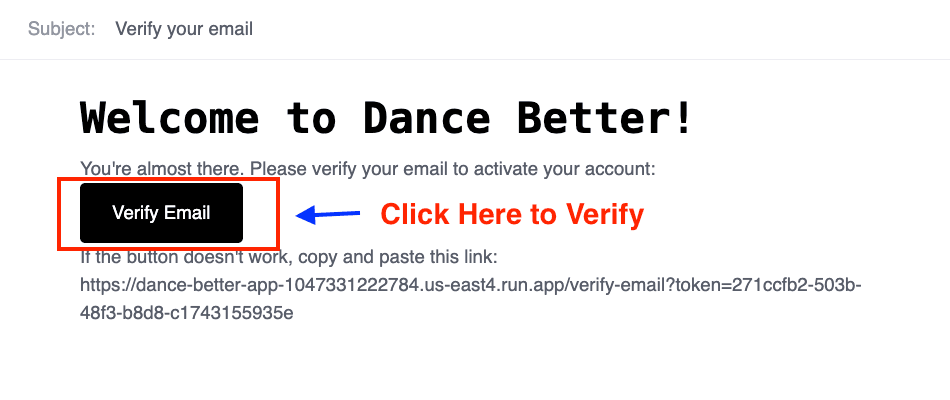
Check your inbox for an email from DanceBetter. Click the link that says “Click here to verify your account.”

I didn’t get the verification email, what should I do?
Check your Spam or Promotions folder, wait a minute or two, or request a new verification email from the login page. If it still doesn’t arrive, contact support.

How to Record Your Video
How should I record my video for the best results?
Most analysis failures happen because the recording isn’t clear enough for DanceBetter AI to read your movements. To avoid this, make sure your video meets the following:
Good lighting: Record in a bright, evenly lit space. Avoid dark rooms, shadows, or strong backlighting. These make it hard for DanceBetter AI to detect your body.
Stable, level camera: Keep the camera steady using a tripod or a secure surface. Avoid placing the camera on the floor. The upward angle distorts your posture and often causes tracking issues.
Full body in frame: Your entire body should be visible from head to toe for the entire clip. If you’re dancing as a group, make sure the whole group stays inside the frame as much as possible.
Distraction-free background: Choose a clean background without people walking behind you or other dancers in the shot.
Following these simple recording steps significantly improves accuracy and prevents your analysis from failing.
Can DanceBetter analyze my video if other people appear in the background?
It’s possible, but not recommended. Movement from other people can confuse DanceBetter AI and cause tracking interruptions. For the best results, record in a space where only you (or you and your partner or your dance group) are visible.
Can filters, slow-motion, or low-quality recordings cause failures?
Yes. Avoid using filters, beauty modes, slow-motion, time-lapse, or extremely low-quality video settings. These distort natural movement and may cause DanceBetter AI to lose track. A normal-speed, clear recording works best.
Uploading & Analysis
How do I upload my dance video?
Go to Upload Video, choose your file, and click “Analyze My Dance.” The AI will process and generate feedback automatically.
If you’re on a mobile device, please stay on the same tab while the upload and analysis are running as switching apps or tabs may interrupt the uploading process.
What video formats are supported?
MP4, MOV, and AVI formats up to 500MB per upload.
What kind of feedback do I get?
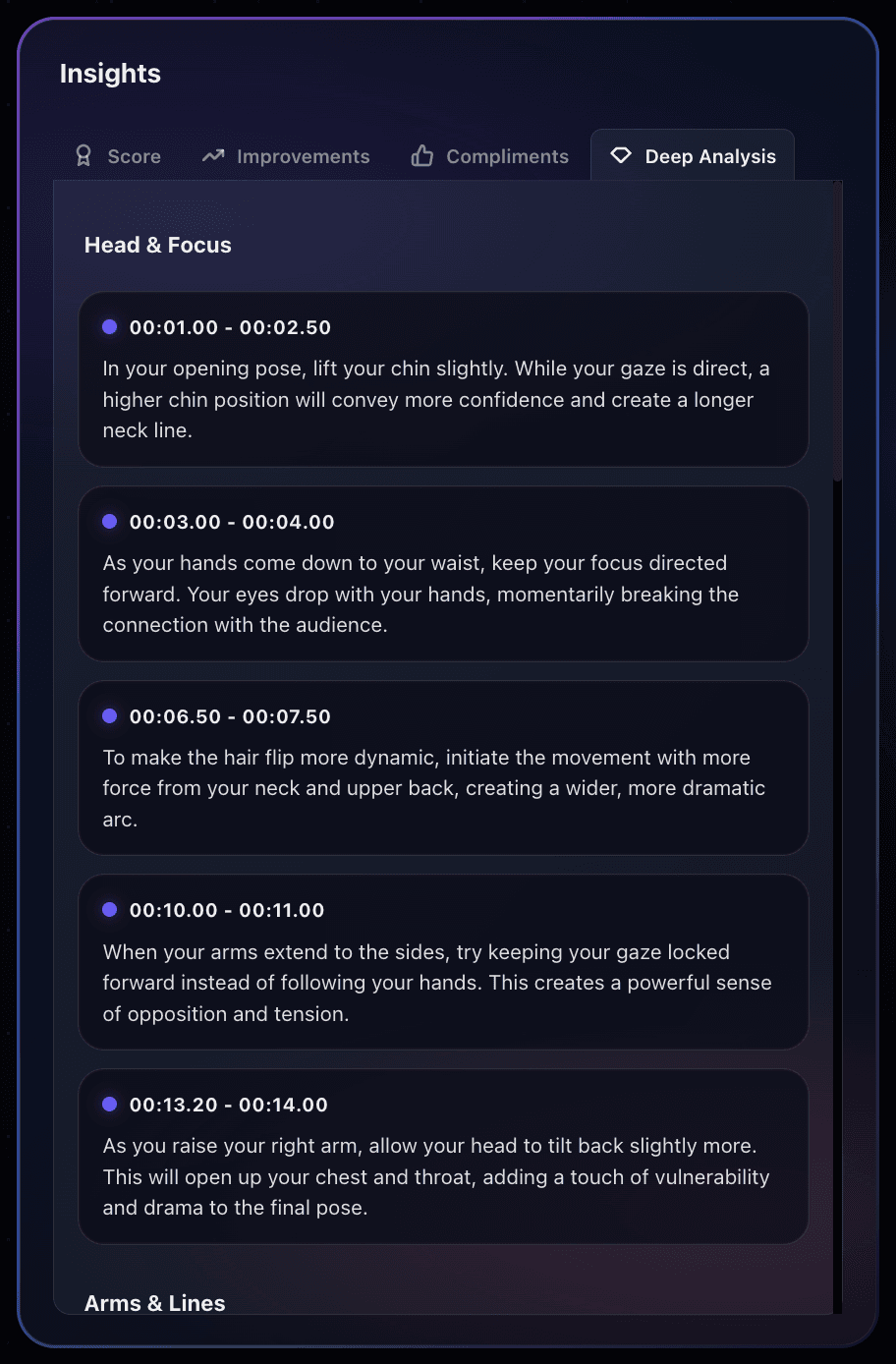
You’ll receive timestamped, personalized feedback on your dance video, highlighting what they’re doing well and offering specific improvements for technique, movement quality, and overall performance.
Video Optimization
Do I need to optimize my video before uploading?
If you have a fast, stable internet connection, you usually don’t need to optimize anything. Your video should upload and analyze without issues. Optimization is only helpful if your upload keeps getting interrupted or takes unusually long.
Why does my video analysis stop or fail sometimes?
Failed uploads often happen when the internet connection is unstable or the file is too large. When this happens, optimizing (compressing) your video helps reduce upload time and prevents connection timeouts.
How can I optimize my video quickly?
The simplest method is to use WhatsApp. Send the video to yourself and save the compressed version. WhatsApp reduces the file size while keeping enough quality for AI analysis.
You can also use any trusted third-party video compression app or website to shrink the file before uploading.
What resolution works best for DanceBetter?
The DanceBetter AI doesn’t need ultra-HD footage. A resolution between 720p and 1080p is more than enough. Higher resolutions like 4K create huge files that upload slower without improving the analysis.
Does reducing video size affect the accuracy of the analysis?
Light compression (like WhatsApp or standard video compressor settings) won’t hurt the results. As long as your full body is visible and the movements are clear, the AI can analyze your performance accurately.
My video is very long. Should I trim it?
Yes, shorter videos upload faster and are more reliable. Trim the clip to the part you want analyzed, especially if the full dance is long. This can significantly speed up the process.
What file format works best?
MP4 is recommended because it offers great quality with smaller file sizes. MOV files (especially from iPhones) can be much larger, so converting them to MP4 helps with reliability.
Will optimization change how my dance looks?
Mild compression won’t noticeably change your video. DanceBetter AI doesn’t need super sharp details, it focuses on body positioning and movement patterns, so slight quality reduction is okay.
What if I optimized the video and it still fails?
Try switching to a stronger Wi-Fi connection or uploading from a desktop instead of mobile. If the issue continues, contact support and we’ll help troubleshoot.
Billing & Credits
How do credits work?
Each analysis requires a set number of credits. You can buy credits anytime from your My Account → Add Credits page.
What if my upload fails?
Credits are only deducted once the video is successfully analyzed. Failed uploads won’t cost you credits.
Can I get a refund for unused credits?
Refunds are considered for technical issues. Please contact our support team for help.
Learning & Feedback
Does DanceBetter tell me how to improve?
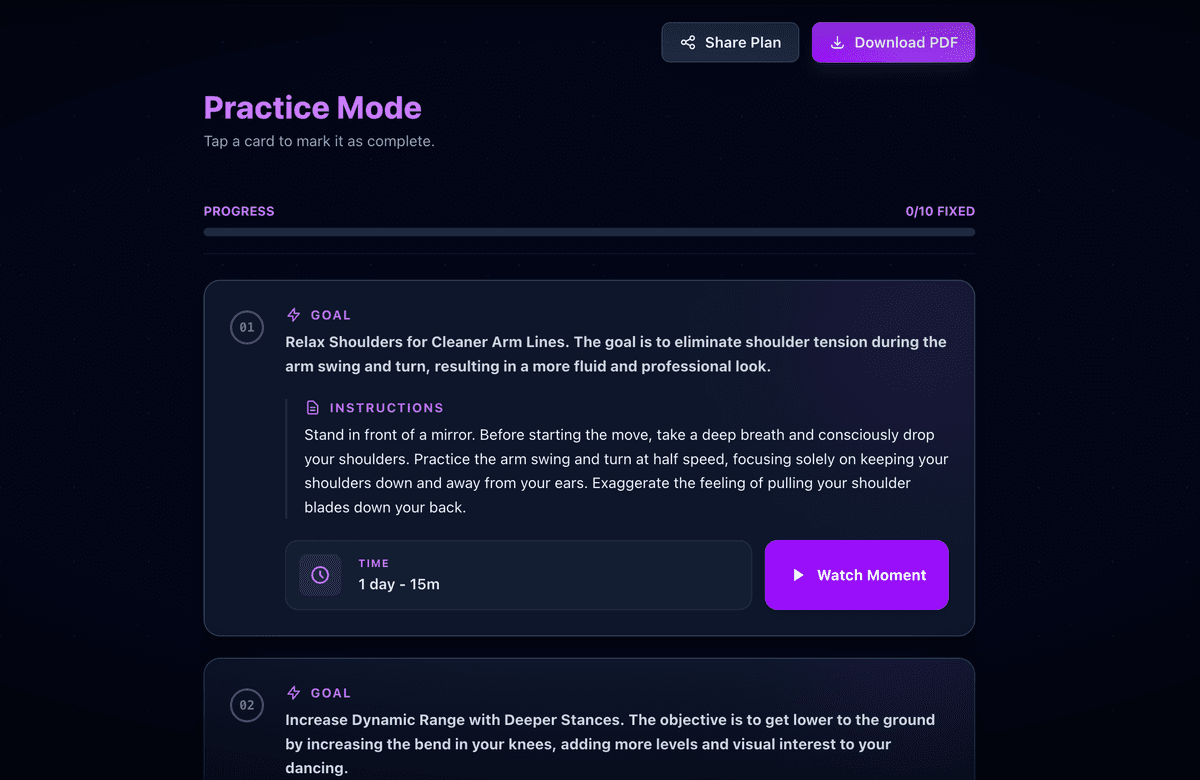
Yes. The AI highlights posture, balance, and timing issues and gives clear, step-by-step improvement tips.
Will my scores improve if I re-upload a better performance?
Yes. Uploading a improved performance will give you updated insights, helping you track your progress over time.
Privacy & Data
Is my data secure?
Absolutely. All uploaded videos are encrypted, processed privately, and never shared without your permission.
Can I permanently remove my videos and account data?
Yes. You can permanently remove your videos and account data upon request through the Contact Us page.
Technical Support
My upload isn’t working — what should I do?
Check your internet connection, clear your browser cache, and try again. If the problem continues, contact support.
The AI feedback looks incorrect — can I re-analyze?
Yes. You can re-upload your video for another analysis without issue.
How can I reset my password?
Go to the login page and click “Lost your password?” — you’ll receive a reset link via email.
How do I contact support?
Visit our Contact Us page to reach our team for help with technical or billing issues.